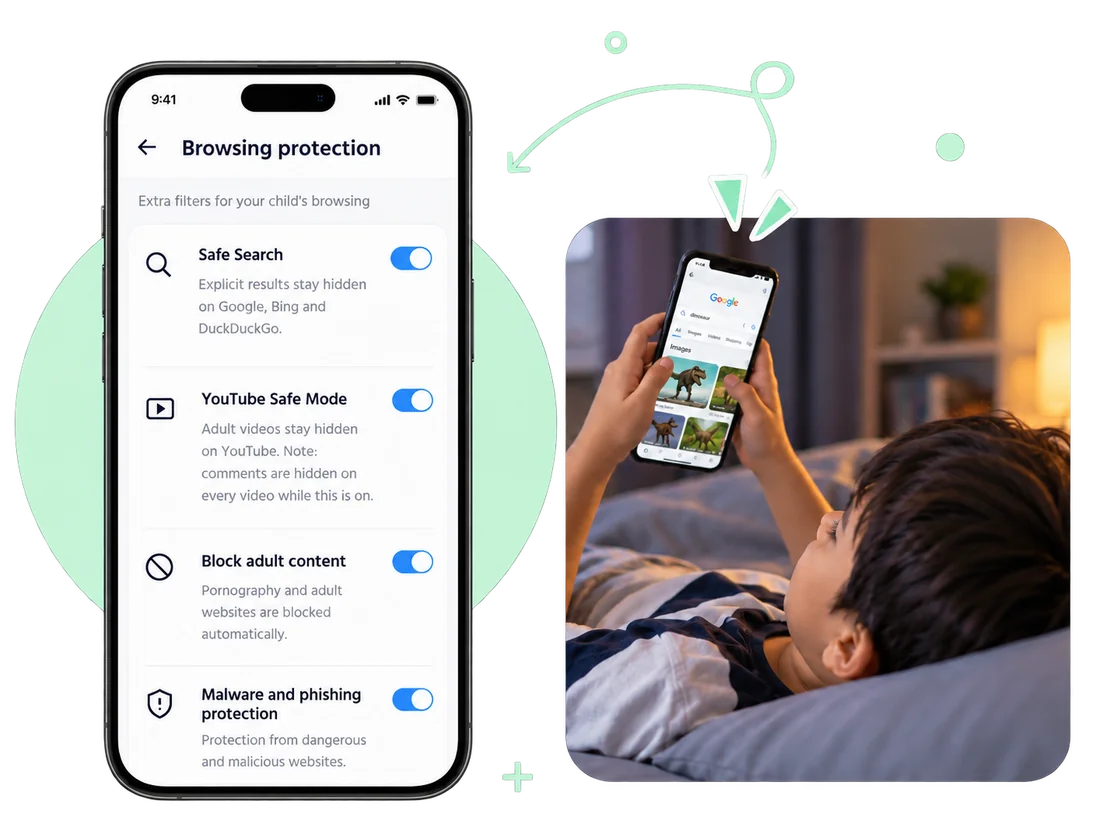
A practical guide from the ChayaNetwork team for the moments when family life and the online world meet.
Before you begin
Have access to your router or the device you want to configure, and know how to restore its previous settings. Check the current setup guide in your ChayaNetwork account: product screens and supported devices can change, so use the instructions shown there rather than relying on an old screenshot.
Follow the current instructions carefully
- Sign in and review the setup steps for your selected device or router.
- Apply the DNS or network settings exactly as displayed in your account.
- Reconnect the device or restart the router if the instructions request it.
- Confirm the dashboard reports that the device is connected.
- Test ordinary browsing and the categories you chose to restrict.
If something does not work
Check for a typing error, wait briefly for the router to apply settings, then reconnect. Confirm the device is on the expected Wi-Fi and is not using cellular data or a separate VPN/private DNS configuration. If a legitimate site is blocked, use the account’s current support or allow-list process.
Set expectations with your child
Explain that the setting adds a safety layer to the connection. It does not read every message, guarantee that all harmful content is blocked, or replace family conversations. Be clear about what is configured and invite your child to tell you when something is incorrectly blocked or upsetting.
A final check
Keep the router login private, review settings after major device changes, and revisit household rules together. For a wider family plan, the AAP has a useful planning resource: American Academy of Pediatrics: Family Media Plan.
Good digital habits grow through small, repeatable steps.