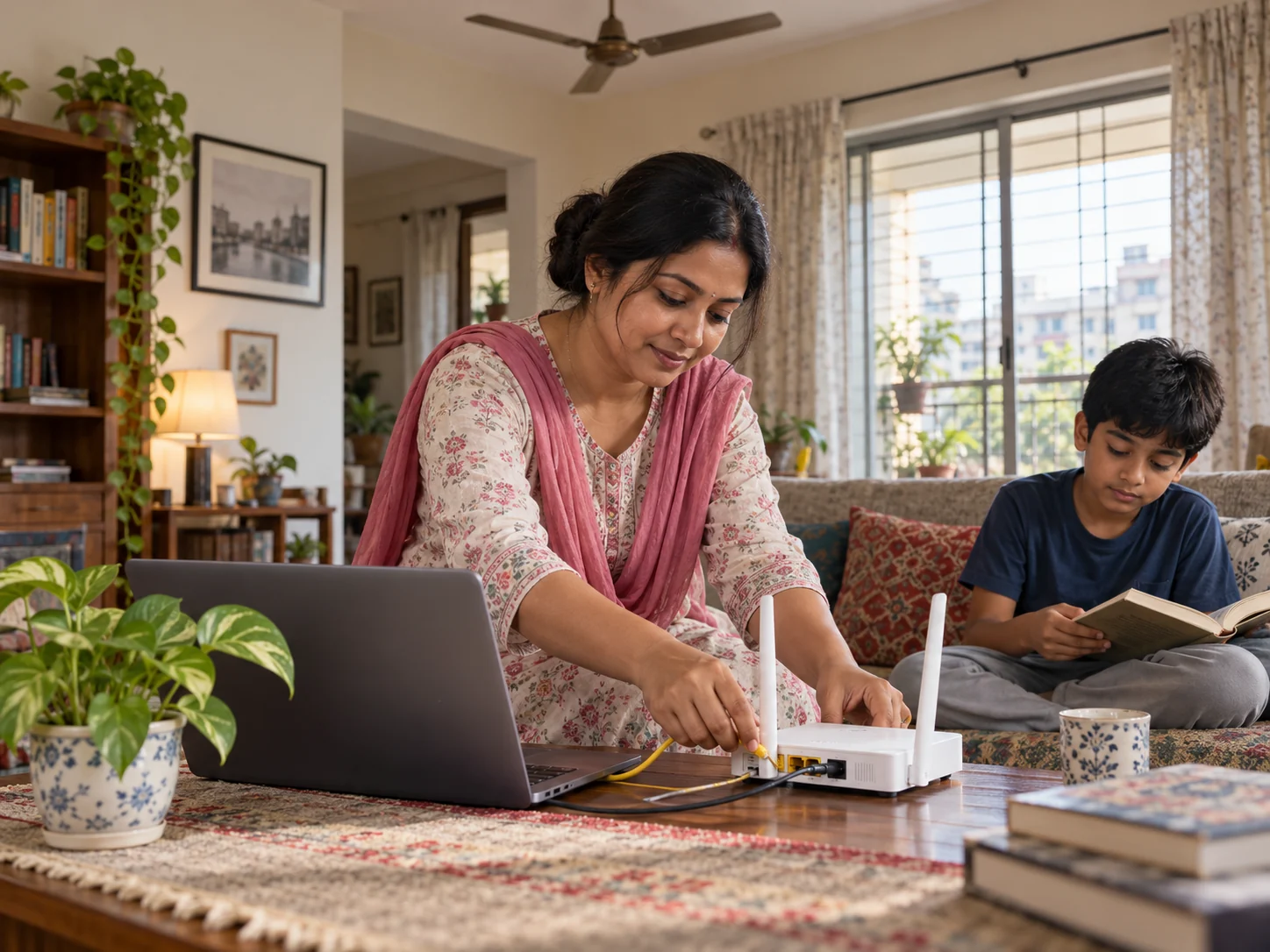
A practical guide from the ChayaNetwork team for the moments when family life and the online world meet.
Start with the router itself
- Change the router’s administrator password from its default.
- Use WPA2-AES or WPA3 security if your router and devices support it.
- Install firmware updates from the router maker.
- Turn off remote administration and WPS if you do not use them.
- Use a separate guest network for visitors and smart devices when available.
Decide what family filtering should cover
A DNS-based filter can block requests to domains in selected categories across devices using that network. It usually does not inspect the contents of encrypted pages, direct messages, or every in-app video. It may also miss traffic when a device uses cellular data, a VPN, private DNS, or another network. Read the provider’s documentation before choosing one.
For example, Cloudflare documents its family-filtering DNS options and setup here: Cloudflare: 1.1.1.1 setup and filtering options.
Test the setup and keep a route to undo mistakes
After changing settings, test a few ordinary sites and the categories you intend to restrict. Keep a note of the original router settings so you can reverse a change. If a useful site is blocked, adjust the filter rather than asking a child to work around it.
Network safety is one layer
Router settings cannot replace device updates, account privacy controls, age-appropriate conversations, or a plan for what a child should do when something feels wrong. UNICEF’s family guidance is a useful companion to technical controls: UNICEF: keeping your child safe online.
Good digital habits grow through small, repeatable steps.