A practical guide from the ChayaNetwork team for the moments when family life and the online world meet.
DNS in one minute
When a device opens a website, it asks DNS to translate the site name into a network address. A filtering DNS service can refuse to look up domains in categories its policy blocks. This can be useful on a home network or on a device configured to use that service.
What it can help with
Depending on the provider and configuration, a family filter may restrict access to known domains in categories such as adult content or malware. Coverage differs between providers and changes over time. Check what the service actually promises and how it handles privacy.
What it cannot promise
- It cannot guarantee that every harmful page, image, or message is blocked.
- It generally filters domains, not the meaning of everything inside an app or webpage.
- It may not apply when a device switches to cellular data, another Wi-Fi network, a VPN, or its own encrypted DNS setting.
- It does not provide a complete record of what a child reads or watches.
Provider documentation explains the configuration and limits; see Cloudflare: 1.1.1.1 setup and filtering options.
Choose a setup that fits your household
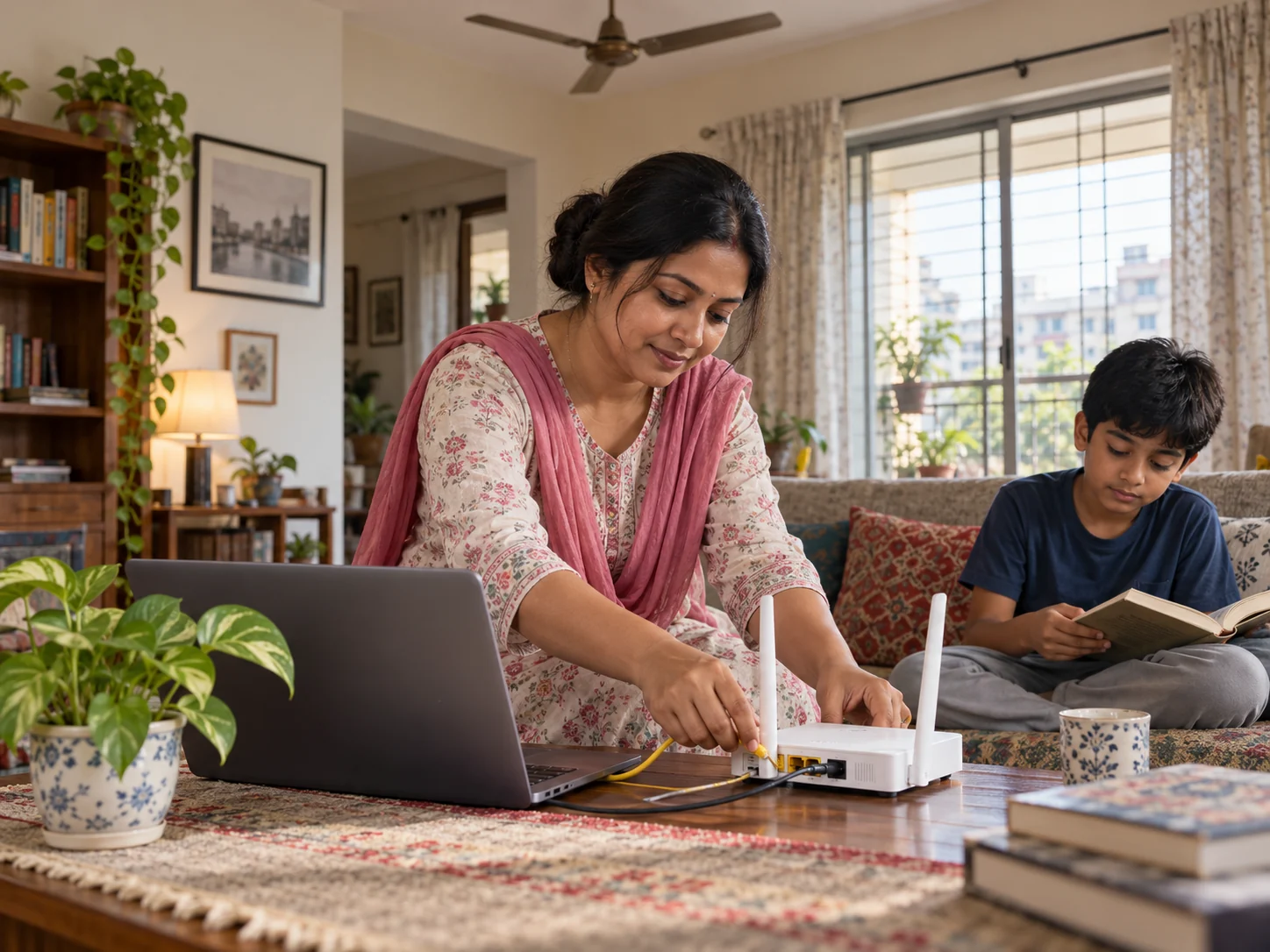
For household-wide filtering, configure the router’s DNS if your router supports it. For protection away from home, a device-level option may be needed. Read instructions for your exact device, test the result, and keep an adult able to change a setting if it blocks something important.
Pair technology with a conversation
Tell children what the filter does and why it is there. Agree on what they should do if a page is blocked unexpectedly or if they see something upsetting. Filtering can add friction and reduce some exposure; trust and help-seeking matter just as much.
Good digital habits grow through small, repeatable steps.